how to: (use IRC without being a dink)
Updated: June 20, 2001
This guide will explain how to use Bersirc on a Windows platform while observing proper etiquette so you don't get kicked or banned. If you prefer to use mIRC click here for that guide
Installation and configuration
Once you've downloaded and installed
Bersirc start the program and go into
Tools --> Options. In the General Settings section enter any name you want in the
Real Name field. The Nickname field can contain any combination of numbers/letters/punctuation up to 9 characters
(the actual limit varies depending on which servers you are connecting to). The Alternative field is the nickname that will be used in the event that someone else is already using your primary nickname.
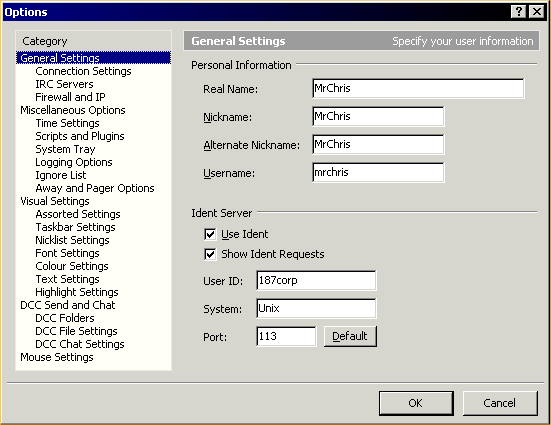
You may want to change the Identd Server section. You can check Use Ident and stick in a bogus User ID for servers that require Ident. The last thing to do in here is go to Connection Settings and uncheck Connect On Startup if you'd rather choose which server you wanna connect to after the program starts instead of automatically connecting to the last one you were on.
Connecting to a server
Go to the
IRC Servers section under Tools --> Options --> General Settings. There are groups of servers which sync to each other to form networks. Examples of major IRC networks are Dalnet, EFnet and Undernet. There are also standalone servers which are not part of a larger network. I'll use EFnet as an example for this guide.
You can pick an existing server and click Connect or you can add a
new one. To add a new server click the Add button just under the
server list. Put whatever Server Description you want (ex. CA, AB, Edmonton). For
Server Name use irc.powersurfr.com and put a value of 6667 in Port
Range. Click OK to add this server to your list. I use irc.powersurfr.com as an example because it is one of the few that does not require
Ident responses in order to connect which can save a few headaches.
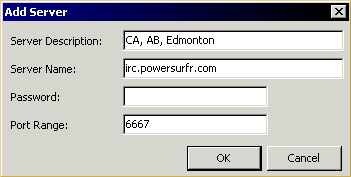
To connect to the newly added server just click on it in the list and press the Connect button.
After you're connected to a server
After you connect you'll see a Message Of The Day and a bunch of other crap scroll by. Read it if you want or don't. To get a listing of available Channels (chat rooms) click the List channels icon
 . In the windows that opens up, click the
Get List button and wait until the list has finished loading. You may get an error like: ERROR: Server load is temporarily too heavy. Please wait a while and try again. In that case you can still connect to a channel if you already
know the name (ex. #channelnamehere) by typing /join #channelnamehere in the Status window or you'll have to keep trying until the list can be transferred. Once the list has been downloaded (there are usually >10000 channels on EFnet) you'll see a listing divided into three sections. The first section displays the channel name which is always preceded by a # sign. The second section displays the current number of people in the channel. The third section displays the
Description for that channel. Double click on any channel(s) that look interesting. Some may be invite only in which case someone already in the channel has to invite you to join.
. In the windows that opens up, click the
Get List button and wait until the list has finished loading. You may get an error like: ERROR: Server load is temporarily too heavy. Please wait a while and try again. In that case you can still connect to a channel if you already
know the name (ex. #channelnamehere) by typing /join #channelnamehere in the Status window or you'll have to keep trying until the list can be transferred. Once the list has been downloaded (there are usually >10000 channels on EFnet) you'll see a listing divided into three sections. The first section displays the channel name which is always preceded by a # sign. The second section displays the current number of people in the channel. The third section displays the
Description for that channel. Double click on any channel(s) that look interesting. Some may be invite only in which case someone already in the channel has to invite you to join.
After you're connected to a channel
Channels may have rules that are expected to be followed. Sometimes the rules will be listed in the Topic description or they will be displayed in the channel after you enter. If you are unsure of the rules it's best to just sit around for a few minutes and observe. Some channels allow Triggers to activate events. Triggers can be things like !list, !rules, @find, somestupidasstextstring, etc. Some channels hate triggers and will kick or ban you if you type one. Read the rules or observe others' actions before trying a Trigger. In the channel a bunch of crap will scroll by with people typing messages and various other channel and server notices being displayed. If you're looking for software make sure you're in a *good* channel. I'm not gonna list any here but they're pretty easy to find. Just look for the channels with the most users. Some people run FServes and other run FTPs. FServes are activated by typing Triggers which are displayed in the channel. FTP sites are "advertised" in the channel and you use an external FTP program to connect to those sites. I recommend Bullet Proof FTP for connecting to FTP sites. Some people who run FTP sites have "Look" accounts. These accounts let you connect to the FTP and browse but not download anything. If you use Bullet Proof FTP, you can connect with the "Look" account and queue the files you want, then disconnect and try to re-connect with the full access username/password. Observe the rules for the FTP site which are displayed in the IRC channel. The most common rule is no hammering. Click here for the
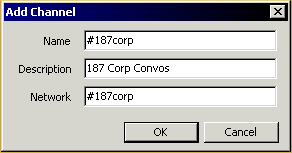
FTP guide which outlines FTP etiquette and explains hammering. Another typical rule is to stay in the channel while you are downloading from a server listed in the channel. The FServe and FTP site messages are on Timers which automatically repeat after a specified number of seconds. You can also set up your own Timers to request crap or display something. I find request timers to be very annoying so figure out how to use 'em on your own. You can also, of course, chat with other people in the channel. I don't chat unless it's someone I already know mostly because I'm there to get what I'm looking for and be out. In the channels I frequent there are usually hundreds of users and about a dozen who actually chat. If you like the channel and think you'll be connecting to it frequently you can add it to your "favorites" list which is accessed by clicking the
Favourite Channels icon on the toolbar
 . Click the Add button and enter the appropriate information making sure you put a # before the channel name.
Other crap to do in IRC
There's not much else I've had to do in IRC. You can install
add-ons for Bersirc
which will give you more functionality or automation. You don't need the
add-ons for basic use but they are useful if you use IRC often and want some "extras".