how to: (set up a psx emulator)
Updated: March 28, 2002
This guide will explain how to set up ePSXe on a Windows computer. An emulator is a program that lets your computer act like another computer (in this case a Playstation). You run the standard Playstation CD games or an ISO of the game that you run from your hard drive. There are a few other PSX emulators but I like ePSXe for it's performance, ease of use and compatibility.
Crap needed
ePSXe
(download the latest version, 1.5.1 as of this guide). You should
probably just DL the Installer version which includes the plugins
you'll need and the ePSXecutor front end for launching games
Playstation BIOS file (do not ask me for one. Try searching
for one)
Windows 9x (I use Windows XP Pro with no problems)
Pentium 200 MHz (I've found systems below 450 MHz too slow for some games)
32MB+ RAM
Good OpenGL or D3D video card (Nvidia
TNT2 or higher recommended)
DirectX or OpenGL
Latest sound and video card drivers
Installing
and configuring ePSXe
After you have downloaded ePSXe, run the setup program and install
it anywhere you want
on your hard drive (i.e. C:\Games\ePSXe). Copy the Playstation BIOS file
to the bios sub-folder of the installation folder. After it is installed you can start the program by launching
ePSXecutor from the Start Menu. The screen shown below
will appear (albeit without any configurations).
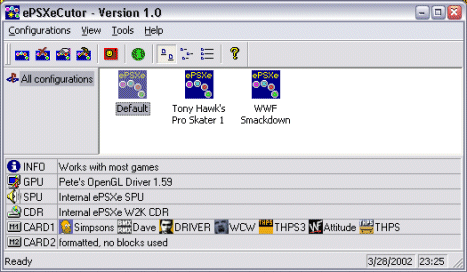
You have to create at least one configuration before you can play a game so go to Configurations-->New ePSXe configuration. Give the configuration a Name (i.e. Default), an optional Bitmap to replace the default icon and a Description of the configuration. Then click the Configure ePSXe button and you'll get the screen shown below.
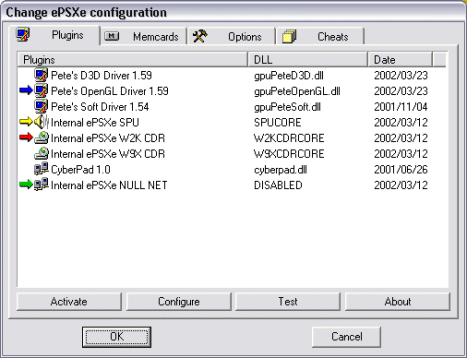
You must select one video driver, one sound driver and one CD-ROM driver for a configuration to be complete. Just click the driver you want to use and click Activate. The Internal ePSXe SPU sound driver works on all the games I've tried but there are others which may work better with some games. You can find them at PSXEmu in the ePSXe plugins section. Choose the CD driver that matches your OS (Win9x/ME or Win2000). The video driver you pick depends on your video card's capabilities. In general you should try using Pete's OpenGL Driver first and the D3D driver only if you're having graphical problems. When you have Activated a video driver click Configure to open the window shown below (OpenGL is used in this example).
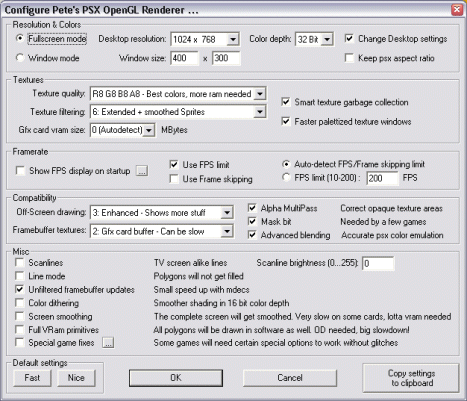
I'm using the above configuration on a 1.53 GHz Athlon XP with a GeForce 3 64MB DDR video card. The settings provide very good quality graphics with fast speed. If you are having problems try adjusting the Caching type. Click OK when you're done with the video configuration. Some games may prefer D3D to OpenGL or vice-versa. When using ePSXecutor you can set up different configurations to use different video drivers. We are creating a default configuration to work with most games. On my system Tony Hawk's Pro Skater works better with D3D so I created a configuration specifically for it which uses Pete's D3D Driver as the video driver.
Now go into the Memcards tab to get the window shown below.
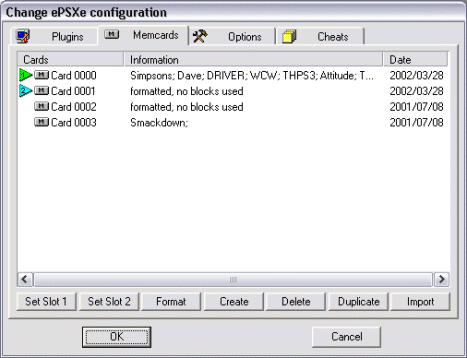
Click Create to create a memory card on your hard drive. Create as many as you want. Click on the Card # you want to use (i.e. Card 0000) and then click Set Slot 1 to assign it to Player 1. If you want to assign a card to Player 2, repeat the process with a different Card # and click Set Slot 2. When using ePSXecutor you can set up different configurations to use different memory cards. We are creating a default configuration to work with most games. You can create another configuration specifically for one game and assign a memory card only for that game to use if you like.
Now click the Options tab to get the screen shown below.
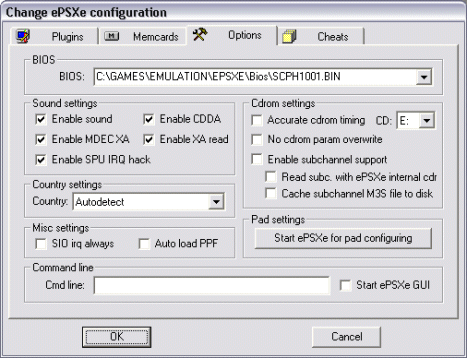
The settings shown above should work on the majority of games. You should change the CDR-Drive: setting to match your computer's settings. If full motion videos and CD audio are choppy, you should create another configuration and uncheck Enable MDEC XA and Enable XA read in this box. Doing so will disable sound during full motion videos and also CD audio but it may be the only way to play the game smoothly. If you want to completely disable full motion videos for a configuration, uncheck MDECs and MDEC timing under Misc settings. Click OK when you're done to return to the main screen of ePSXecutor.
To configure controllers for ePSXe, click Start ePSXe for pad configuring from the Options tab and ePSXe will start. Go to Config-->Game Pad-->Pad 1 and the screen shown below will appear.
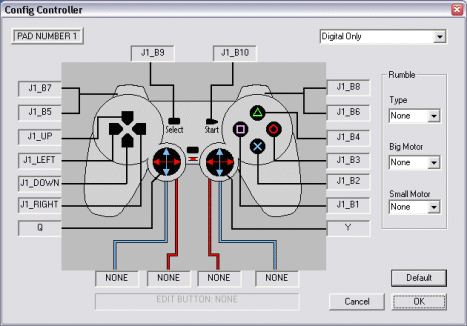
Just click the box of the button/direction you want to change (i.e. J1_B7) and press the button/direction on the controller that you want to perform the function. I use Gravis Gamepad Pros and they work good but the Logitech Wingman RumblePad has analog controls which *I think* can be used to replicate a Playstation's analog controls albeit without the rumble effects (that would require native or plugin support for the RumblePad by ePSXe). Click OK when you're done configuring the pad and repeat the process for Pad 2 if you want to configure Player 2's controls. When you're done, close ePSXe and return to ePSXecutor.
Playing
games
To play a CD game simply insert the CD and double-click the ePSXecutor
configuration that you want to use for that game (i.e. Default). If
you want to play an ISO you will have to launch ePSXe (not ePSXecutor)
and go to File-->Run ISO and navigate to the .bin or .iso
file. The game controls are the same as they were when
you played on the original PSX. The emulator program lets you save
the game whenever you want, even in games that don't have a save-game
feature. These are called save states. You can save your current
game by pressing F1 to save to the current designated slot. You can
change the current slot by pressing F2 up to the maximum of five
slots. To load the save state in the current slot press the F3
key while the game is running. Games that have built-in save
options (i.e. Metal Gear Solid) will still let you save the game
the traditional way along with using a save state. The
advantage of save states is that you can use them whenever you
want. Be careful not do a save state at a bad time (i.e. in the
middle of dying) or you'll have to start the game over or, if available,
reload a traditional save. The plugins that you use for ePSXe
must support save states. The sound and CD plugins that come with ePSXe
have support for save states as well as Pete's video plugins
version 1.46 and above. To see a list of other plugins that support save
states check the support links at
NGEmu.
You can pause a
game by pressing the game's pre-assigned pause button on your controller
or by pressing Pause on the keyboard. To quit a game press ESC.
You can use GameShark cheats by going into the Cheats tab of an ePSXecutor configuration as shown below.
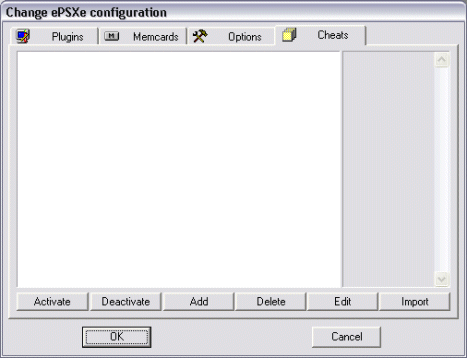
Click Add and enter the code (go to GameFAQs for codes) and, optionally, a description of the code and then click Activate. If you want to use cheats it would be best to set up a configuration specifically for that game. Otherwise the cheats will be active in other games that are launched using the configuration which could cause problems.
You can also download DexDrive saves to play someone else's save game. Copy the DexDrive file(s) to the memcards sub-folder where you installed ePSXe. They will have to be renamed to epsxeXXX.mcr where XXX represents a number that isn't already in use by another file in the memcards folder (ex. if you already have 4 files in the memcards folder named epsxe000.mcr - epsxe003.mcr, rename the new DexDrive save to epsxe004.mcr). Then just edit the configuration you want to use the new memcard in and press Set Slot 1 or Set Slot 2 while the new memcard is highlighted.
During the game you can also take a picture of the current game screen by pressing F8 on your keyboard. The image will be saved as a .bmp to the snap sub-folder of the ePSXe installation folder. A unique file name is assigned each time you press F8 so you can capture multiple screens in one game session .
If you want to switch to a new game press ESC on the keyboard to return to ePSXecutor (or ePSXe if it's an ISO) and eject the old game and repeat the process beneath the Playing games section above for the new game.
Troubleshooting
Some games may not run with the default settings. Common things to try are
unchecking Enable MDEC XA and Enable XA read in the Options
box of an ePSXecutor configuration or try a different video or
sound plugin. Some games can also use cheats to get them to work properly.
Some games may just be incompatible with ePSXe at the moment. You
may have to wait for a new version or patch. There is a help file called epsxe_en.txt
in the docs sub-folder of the ePSXe installation folder
which may be able to help you. Check the message boards at NGEmu
for further help.
As long as you have a decent CPU and a good video card you can play Playstation games with much higher image quality. It turns those ugly, pixilated games into whole new versions with the same crappy storylines and endings. Enjoy.