how to: (set up an snes emulator)
This guide will explain how to set up SNES9x on a Windows computer. An emulator is a program that lets your computer act like another computer (in this case a SNES). You run images of games called ROMs on the emulator program. There are a few of SNES emulators but I've found SNES9x to be the best.
Crap needed
SNES9x
(download the latest Windows version, 1.36 as of this guide, with
setup program)
ROMs to play (look for them
here)
Windows 9x (I use Win2000 with no problems)
Pentium 200 MHz (I've found systems below 400 MHz too slow for some games)
32MB+ RAM
Good OpenGL or D3D video card (Nvidia
TNT2 or higher recommended)
DirectX or OpenGL
Latest sound and video card drivers
Installing
and configuring SNES9x
After you have downloaded SNES9x, run the setup program and install
it anywhere you want
on your hard drive (i.e. C:\Games\SNES9x). A ROMs sub-folder
will be created below the installation directory (i.e. C:\Games\SNES9x\ROMs)
to store the ROMs you download. If the sub-folder is not
automatically created, create it manually.
After SNES9x is installed you can start the program by launching it
from the Start Menu. Start the program and configure the video by
going to Options-->Display Configuration. The screen shown below
will appear.
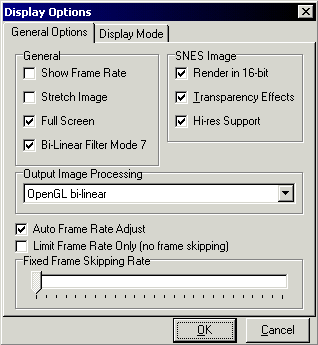
If you have a 400+ MHz system with an Nvidia TNT2 or higher video card I would recommend using the above options. If you find that games are running too slow you should first change Output Image Processing to None. You can also turning off 16-bit rendering and Transparency Effects at the expense of image quality. If you use the OpenGL bi-linear or 3dfx bi-linear filters, the games will automatically stretch to full screen or to fill the SNES9x window. If you are not using either of those filters you can put a check in Stretch Image to achieve the same effect. Click the Display Mode tab to get the screen shown below.

You have to run Test mode on at least one resolution before you can play a game. I usually just pick the resolution that matches the current desktop settings (1280x1024x16 in my case) and press the Test mode button. A dialog box pops up to ask whether the mode displays properly. If everything shows up OK click yes or press y to confirm the resolution. If there's a problem press ESC or n to get back to the above screen and try a lower setting. If you find that games are running too slow you may want to try going to something like 640x480x8. You should also try to Enable Double Buffering unless it causes games to run too slow. When you are done configuring the video options press OK and exit the program (go to File-->Exit or press ALT+F4) and restart it for the changes to take place.
You shouldn't need to change any options in the Sound-->Options section but if you have problems with audio in some games, try screwing around in there. If all your games have bad or choppy sound your PC may not be fast enough. You can disable sound (gay) or get a new computer (go here and buy the computer that I recommend).
If you have a controller that you want to use (Gravis Gamepad Pro recommended) go to Options-->Joypad configuration and the window shown below appears.
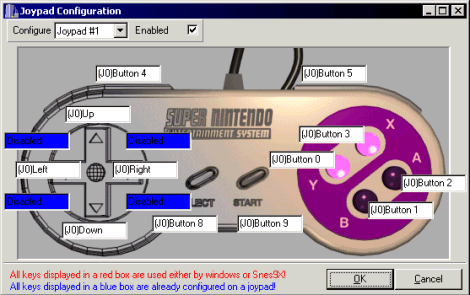
Make sure the Enabled box is checked and click in the boxes and press the corresponding controller buttons to set everything up. If you have a second (or third, fourth or fifth) controller, click the dropdown box beside Configure to Joypad #2 and make sure to check the Enabled box and repeat the process on the other controller(s). Click OK when you're done and get ready to have some ROM-palicious fun.
Playing
games
Assuming you downloaded a ROM, go to File-->Load Game or press CTRL+O.
The screen shown below will open up.
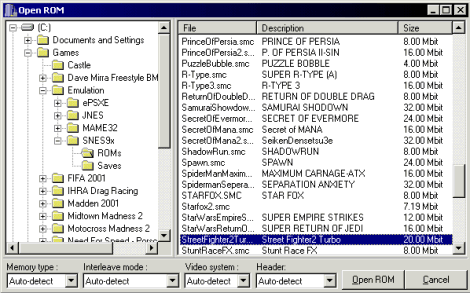
Go to the directory where you store the ROMs (i.e. C:\Games\SNES9x\ROMs) and double-click the one you want to play or highlight it and click Open ROM. The game will (hopefully) start and you can proceed to killing or driving or whatever the hell you're doing.
The game controls are the same as they were when you played on the original SNES. To get rid of the menu bar along the top of the screen press ESC. If you want it back press ESC again. The emulator program lets you save the game whenever you want, even in games that don't have a save-game feature. These are called save states. You can save your current game by pressing SHIFT+Fn where Fn is one of the 12 F keys along the top of the keyboard. To load a saved state press the Fn key which matches the save state you wish to load while the game is running. Games that have built-in save options (i.e. Super Metroid) will still let you save the game the traditional way along with using a save state. The advantage of save states is that you can use them whenever you want. Avoid creating a save state at a bad time (i.e. in the middle of dying) or you'll have to start the game over or, if available, reload a traditional save. You can pause a game by pressing the game's pre-assigned pause button on your controller or by pressing Pause on the keyboard.
You can use Game Genie and Action Replay codes by going into Cheat-->Game Genie, Pro Action Replay Codes or by pressing ALT+E while a game is running. The cheat window shown below will open

Enter the code (go to GameFAQs for codes) and, optionally, a description of the code and click Add. Most game will have to be reset (go to File-->Reset Game) for the cheat to take effect.
During the game you can also take a picture of the current game screen by pressing Print Screen on your keyboard. The image will be saved to the clipboard so you can only hold one at a time unless you have some super clipboard enhancement surgery which enlarges your clipboard. Go into a graphics program (i.e. Paint Shop Pro) to paste the image and save it as a file.
If you want to switch to a new game press CTRL+O or press ESC on the keyboard to bring the menu bar back and go to File-->Load Game. If you want to exit SNES9x completely go to File-->Exit or press ALT+F4.
There is also a feature called Netplay which lets you connect two computers to play each other over the Internet or a network. Choose NetPlay from the menu bar. One machine must Act as Server and the other machine chooses Connect to Server and enters the IP and port information. I have not used this mode of play but it should work albeit in beta form.
With a SNES emulator you can see that your thousand+ dollar computer can barely replicate a $250 (circa 1991) machine. Have a nice day.