home
bio
vehicle
tv
computers
games
music
movies
files
links
messages
 guides
customize
|
«
|
This guide will explain how to use the FileZilla client on a Windows computer while observing proper etiquette so you don't get kicked or banned. Installation and configuration
The first thing you need is the client. I use FileZilla but there are others like Bullet Proof (here's the old Bullet Proof guide), CuteFTP, WS-FTP, etc. which I don't use anymore because compared to FileZilla they = ass. FileZilla is freeware and it doesn't get better than that value wise. After you've installed the program, start it and go into Edit --> Settings to get the following window.
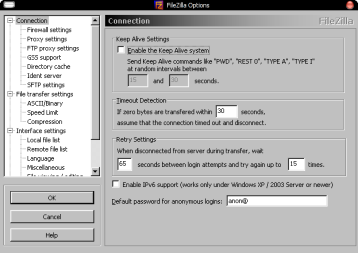
In the Connection tab, uncheck the Enable the Keep Alive system box and change the Retry Settings to a value which will not hammer a server. Hammering a server refers to having too small a delay between connection retrys to a busy (i.e. full) server. If you're trying to connect to an FTP server from an IRC channel (see IRC guide) and your retry delay is too low, you will be banned from that server. Also, change the try again up to value to something nice. I set mine to 15. That means if a server is busy (full) it'll try to connect 15 times with a 65 second delay between attempts. If you put it to something like 999, that should be enough to transfer a queue (explained below) while you sleep. In the Timeout Detection box, set the time to something like 30 seconds or less. This will automatically disconnect you from the server after your queue is transferred. Most FTP server operators don't want you idling (doing nothing) on their servers. You have 30 seconds to cancel the automatic disconnect if you decide there's something else you need to do. Disconnecting when your queue is sent is just common courtesy. One more setting to change is in the File transfer settings section. Uncheck the Use multiple connections to transfer files box as it could get you banned.
Connecting to an FTP server
To connect to a site, put the address in the Address field. The User: field contains the username and the Password: field contains the password. Most FTP servers allow anonymous access so you can just leave the User: field blank (it actually ends up sending username anonymous) and enter a valid email address as your password. The *cool* sites (like those listed in IRC channels) usually have username/passwords which are listed in the channels. Most FTP servers run on port 21 so you can leave it blank (again, the program will end up assuming port 21). Some sites run on custom ports so, if you find one in IRC, put the appropriate number in here).

Once you've got all the info entered, click Quickconnect to, you know, connect and stuff.
Some sites may require you to use Passive Mode box in order to use them. If you connect to a site and the directory contents don't display, disconnect and either check or uncheck this box in Edit --> Settings --> Firewall settings and try connecting again. Once you reconnect, click inside the FTP server's directory window and press F5 to force a refresh of the server's contents. If you still don't get a listing you should give up and turn off your computer or start writing complaint letters or some other stupid crap that I don't wanna hear about. If you want to "bookmark" the site you're currently connected to, go to File --> Copy connection to Site Manager. To access your "bookmarks" click the Site Manager icon  or press F4. You can edit your bookmarked sites to override the default Passive Mode setting in the Settings window if some sites require an alternate setting. or press F4. You can edit your bookmarked sites to override the default Passive Mode setting in the Settings window if some sites require an alternate setting.
Queuing and transferring files
When you find a file that you want to download, double-click it and it will start downloading. If you want to transfer multiple files you can select them by holding the CTRL key while you single-click each file or, if they're in a continuous block, hold the SHIFT key while clicking on the first, then last file and then right-click and choose Add to Queue. To transfer your queued files, click the Q--> button on the toolbar. For some of the *cool* sites you can connect with a "Look" only account which will let you browse the site and queue files but not transfer them. After you disconnect, wait for the appropriate retry delay (as explained above to avoid Hammering) and try connecting with the full access username/password. The best sites are usually very busy so you'll probably have to leave the computer on all night trying to connect. Hopefully when you wake up your queue will be transferred or at least transferring. To upload files you should make sure you are in the appropriate directory with write access. Common directories include Upload, Incoming or some other stupid ass description. When you're in the right directory, double-click the file in your computer's listing window to start uploading it. If you want to transfer multiple files you can select them by holding the CTRL key while you single-click each file or, if they're in a continuous block, hold the SHIFT key while clicking on the first, then last file and then right-click and choose Add to Queue. To transfer your queued files, click the Q--> button on the toolbar.
Have fun FTP'ing and don't piss off the site ops
 Printable version Printable version |

back to computers
home
|