|
This guide explains how to verify system stability after an overclock for Windows based computers.
After you've overclocked your CPU by 50% you need to make sure that it's actually stable at the new speed. Running a
game for 30 minutes doesn't mean you've got a 100% stable system but it can be a decent indicator. Depending on how you
overclocked the computer you'll want to at least do an in-depth check of the stability of 3 critical components: CPU, RAM and video
card. Other components like the hard drive, USB devices and PCI devices will need to be checked but you're pretty safe so long as
your OS loads and your MP3 collection plays OK. If you haven't done any FSB overclocking or, if you can lock your AGP/PCI bus
at spec'd speed, you may not have to worry much about your video card or PCI devices. If you don't know what an FSB is, this probably
isn't a good guide to start with. Also, most of these benchmarks need to run for multiple hours to thoroughly test. If you don't have the time,
you'll either have to live with a possibly unstable system or give up overclocking and die
Crap you'll need:
Prime95 for CPU/RAM testing (version Beta 21 as of this guide)
3DMark 2001 SE for video card/overall stability testing (Current version as of this guide)
Memtest86 for RAM testing (version 2.9 as of this guide)
Prime95 testing:
It doesn't really matter where you start your testing but I usually start with the CPU/memory first. Assuming you can boot into
Windows you should start by closing any background tasks and opening Prime95. Once
it's loaded, go to Options --> CPU as shown in Figure 1 below and select what matches your hardware.
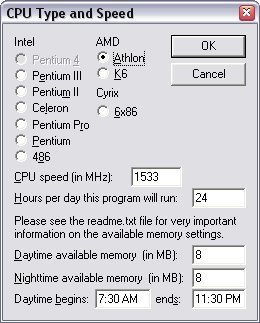
Figure 1: Prime95 CPU options
I don't know if the above step is important (and it probably isn't) but you've
already done it now so who cares? Now go to Options --> Torture Test and let it run. While it's running you should avoid running other programs as they might interfere with
the test. I recommend letting it run for at least 30 minutes and preferably, 24 hours. I've had Prime95 run for 6 hours
without dying and all of a sudden I got an error. The easiest way to tell if the program found an error is to look at the display output in the window. If it
shows an error, it's time to adjust your OC. If reading isn't your strong point, you can look at the systray or start bar icon. If it's
red  , the program is running fine (or maybe your system froze, glue donkey).
If it's yellow , the program is running fine (or maybe your system froze, glue donkey).
If it's yellow  , then the program encountered an error and it's time to adjust your OC. If you get
errors, check the following section. If not, increase your OC until you get errors or be happy and skip down to the next test. , then the program encountered an error and it's time to adjust your OC. If you get
errors, check the following section. If not, increase your OC until you get errors or be happy and skip down to the next test.
Troubleshooting Prime95 errors:
After each of the following adjustments, or any adjustments in this guide, try running the program again until you don't get an
error. The first thing I would adjust is the CPU voltage (VCore). Try turning it up a bit. Again, this isn't a guide to explain how to overclock so be
careful with the voltage. Too much could be not too good for your $300 CPU. If you can't get Prime95 to run after adjusting VCore, you can try adjusting
the memory voltage (VMem) if your motherboard allows it. Again, same warnings as with adjusting VCore. Next up (if you still get errors) is adjusting memory
timings. There are usually quite a few BIOS settings for memory so the adjustments really depend on what your BIOS allows. Try to avoid increasing the CAS
Latency but if you've got no other choice then go ahead. Sometimes a slower CPU speed with a lower CAS Latency is better but you'll have to test that on your
own. If your computer still can't run Prime95 after making CPU and RAM adjustments, you'll
probably have to reduce your overclock by either lowering the FSB clock speed or the FSB multiplier. Another option is to check your RAM by running the CPU at it's
rated speed and letting Memtest86 check for bad RAM (see below). Or you can live with an
unstable system and blame Windows for your BSOD's and crashes.
3DMark testing:
Assuming you passed the first test, you can move on to 3DMark to make sure you'll
be able to play all your swank games without crashes that can be blamed directly on overclocking. Start up 3DMark
and go to Edit --> Options. Put a check beside Looping and also beside High Quality as shown below in Figure 2.
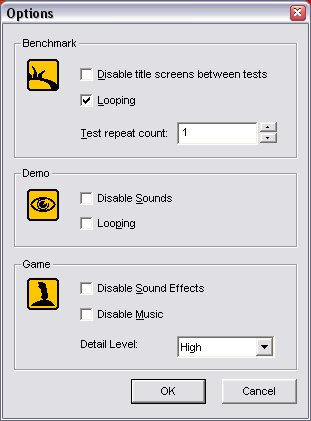
Figure 2: 3DMark 2001 SE options
Next go to Edit --> Settings and choose a decent resolution and any other options you think look cool as shown below in Figure 3.
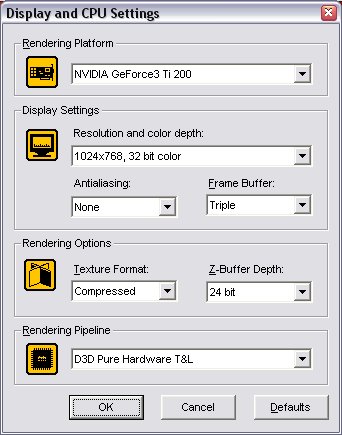
Figure 3: 3DMark 2001 SE settings
When you've got all the options setup, hit the Benchmark button and let it run. Again, I usually let this run for a while. 8 hours or so is good
enough for me.
Troubleshooting 3DMark errors:
Assuming you ran Prime95 first and got it going stable, you can be pretty sure that your CPU and memory are OK. That narrows the problem down to your video card
for the most part. Make sure you've got a good set of drivers for your card. If you're overclocking your video card, you might wanna try a less agressive overclock. If you've adjusted your FSB and you cannot lock your AGP/PCI bus,
your video card may not be able to handle the increased bus speed. For example, I have an AMD Athlon XP1600+ (1.4GHz) that ran Prime
and Memtest86 without error at 1.56GHz (149MHz FSB) but 3DMark
would lock up as soon as I started the loop. Anything above 146MHz FSB (73MHz AGP) would kill my ASUS 8200 T2 video card. Lowering
the clock and memory speed on the video card didn't help and neither did increasing the AGP voltage. That was just the limit of my card. If you still can't get 3DMark to
loop for a few hours after making the previous adjustments, then it's back to adjusting the CPU/memory speeds and voltages. I told you this was gonna take some time.
Memtest86 testing:
If you've passed the first two tests, it's almost over and this test is pretty much guaranteed to pass. Memtest86 is very easy
to run. Just boot off the floppy that gets created when you run the included install.bat and let it run for a while (8 - 24 hours ideally or at least a few passes). If you do get errors (they appear in the bottom half or so of the screen),
the first thing to do is run your CPU and RAM at their rated speed and try Memtest86 again. If it still fails, try moving the RAM to
a different slot. If you've got multiple sticks of RAM, try testing them one at a time. If you try all of the above and still get errors, you've probably got bad RAM (although it may be a motherboard
or CPU causing the error) and you should start swapping parts out.
If your system can pass all of the above tests without error, you've probably got a pretty stable Windows system (from a hardware standpoint anyway). As I mentioned, other components like
the hard drive(s), USB devices and PCI devices may need testing but if you're able to play a game or use your USB device without error, you're probably OK. Welcome to the world of stable (at
least as stable as Windows computing can get) overclocking. There's no point in having a 10% overclock if all you can do is open Notepad (even if it makes for an impressive screenshot)
 Printable version Printable version |
 guides