|
Updated: May 2, 2001
This guide will explain how to tweak Windows 2000 Professional for
home users who don't care about crappy features that make the computer
slower. I don't care about file protection or automation programs. This
isn't a definitive guide. It's just what I do and I'm always right. Check Tweak3D
for more.
Disk
Performance Counters
These monitor disk activity stats. To
disable them open a Command Prompt and type diskperf -N
Services
Disabling unnecessary services reduces the memory footprint of the services.exe
process. Go to Ars
Technica's guide on Windows NT4 services as a
reference. Much of what work in NT4 applies to Windows 2000.
To access services, log in as Administrator and go to Start
--> Settings --> Control Panel --> Administrative Tools -->
Services. The description of the service should give you an idea of
whether or not you need the service to start automatically or manually.
As an example, if you prefer to run a defrag, scandisk, virus
scan, someothercrap by yourself instead of using a scheduling
program, set the Task Scheduler service to Manual. The
following should be left to Automatic:
COM+ Event System
Computer Browser (if you are on a network)
Event Log
Logical Disk Manager
Network Connections (if you are on a network including the
Internet)
Plug and Play
Print Spooler (if you'll be doing any sort of printing from this machine)
Protected Storage
Remote Procedure Call (RPC) (not sure about this one so leave it alone)
Removable Storage (if you use drives with removable media not
including CD/DVD/CDRW)
Security Accounts Manager
Server
System Event Notification
TCP/IP NetBIOS Helper Service (if you need NetBIOS over your TCP
network)
Windows Management Instrumentation Driver Extensions
Workstation (if you are on a network)
The remaining services can probably be left to Manual or Disabled.
If you're not sure about a particular service go to Google
Groups and try searching for it. Only set a service to Disabled
if you are completely sure you do not want it to start or you do not need
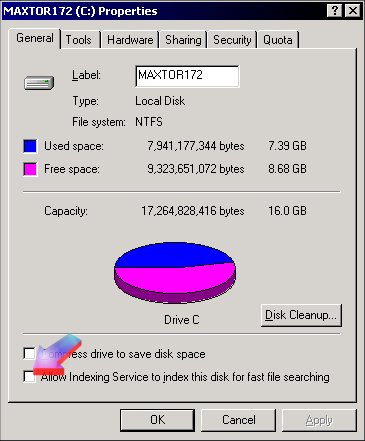
it. Drive Indexing
This will
keep an ever-updating index of files on your hard drive to make searches
complete quicker. If you can't wait a few seconds more (assuming you
don't have 300+GB of crap to wade through) keep this mofo enabled. To
disable it open My Computer and right-click on the drive(s), then click
Properties and uncheck as shown below:
 Virtual
Memory
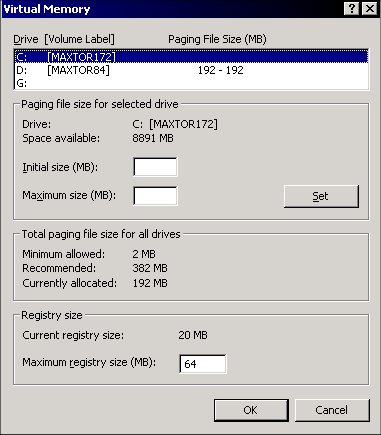
Same as it is in Win9x except it has a static minimum
value and can fluctuate to a maximum as needed. I set mine to a min
and max of 192 (on a 256MB system). If you get errors after screwing with
these settings, try adjusting the values. To adjust the values right-click
on My Computer and go to Properties --> Advanced -->
Performance Options to get the window shown below:
 Visual
Effects
These make menus and windows fade in and out and do other pretty crap.
Fun to look at once, then annoying. Right-click the desktop and go to Properties
--> Effects. Uncheck the Use transition effects for menus
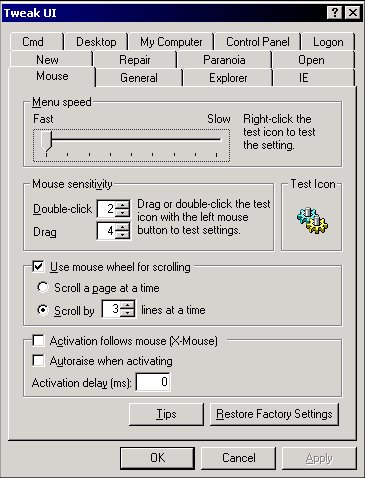
and tooltips box. Tweak
the UI
Download TweakUI
from the Files page
and adjust the menu speed to make menus pop-up ASAP as shown below:
Disabling Windows File Protection
If you try to delete or rename a file in your \WINNT or \WINNT\SYSTEM32 directory
Windows File Protection kicks in and
undoes whatever "damage" you did. To disable this feature (which makes doing the
next tip easier) do the following: 1. Open RegEdit and go to
HKEY_LOCAL_MACHINE\Software\Microsoft\Windows NT\CurrentVersion\Winlogon
2. Find the DWORD key SFCDisable (if it isn't there, create it)
3. Modify the value to FFFFFF9D
4. Close RegEdit and restart the computer
Killing
OS/2 and POSIX
Most people do not need these things residing in memory wasting away
in Margaritaville. If you need them,
you'll know. To disable them open a Command Prompt and CD to
the WINNT\SYSTEM32\DLLCACHE directory. Type ren os2.exe os2.bak
and press ENTER as shown below:

Repeat the process for os2srv.exe and os2ss.exe by
replacing the .exe extension with .bak. Next CD to
the WINNT\SYSTEM32 directory and type ren posix.exe posix.bak
and press ENTER as shown below:

Repeat the process for psxss.exe, os2.exe, os2srv.exe
and os2ss.exe by replacing the .exe extension with .bak.
If you get a window popping up that asks for the installation CD to restore
these files you can click Cancel. The pop-up window will not show up if
you already did the Disabling Windows File Protection tip above. Add
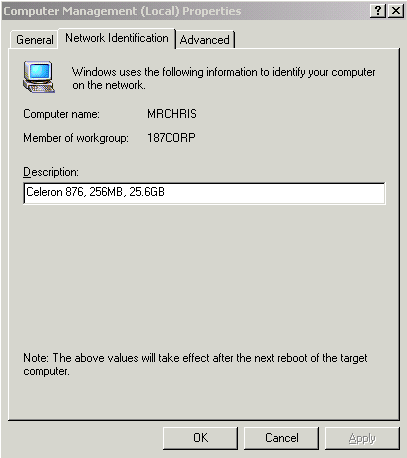
a Description For Your Computer
If you are on a network you can give a description of your system that
shows up when someone else browses your computer. In Windows 9x you
enter your info in the Description box of Network Properties.
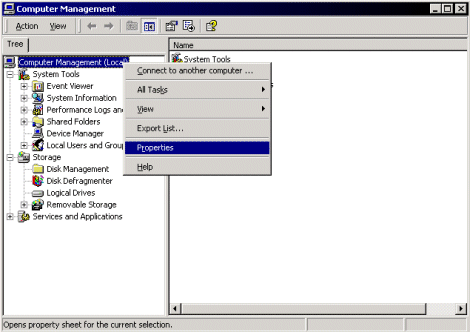
In Windows 2000 you have to right-click My Computer and
choose Manage. In the Computer Management window that opens,
right-click Computer Management (Local) and choose Properties
as shown below:
 Click
the Network Identification tab of the Computer Management
(Local) Properties windows and enter your info in the Description
box as shown below:
 There's
tons of other crap to play with in Windows 2000. Some changes can screw your system up so make sure you check on Google
or Google Groups
if you are unsure of something. For more Windows 2000 tips check
out Adrian's Rojak Pot.
 Printable version Printable version |
 guides