|
This guide explains how to set up a peer-to-peer
network using Windows 98 Second Edition. Most of the information also applies to similar networks running Windows 95, the original Windows 98, Windows ME and Windows 2000 (the dialog boxes are different in Win2000).
Software
Configuration
Requirements:
(2) or more computers running Windows 98
(1) Network Interface Card (NIC) in each computer
(1) Network Hub (only required if there are more than 2 computers in
the network)
or optionally
(1) Crossover Cable (used to directly connect 2 computers in lieu of a
hub)
Software Setup:
Step 1: Click on Start --> Settings --> Control Panel -->
Network
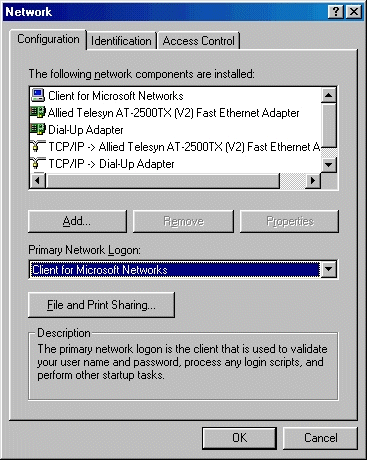
Figure 1: Network Configuration
Step 2: Make sure the following network components are installed:
Dial-Up Adapter (if a standard modem is installed)
Your NIC (Network Interface Card) (shown as Allied Telesyn AT-2500TX in
Figure 1)
TCP/IP --> Dial-Up Adapter (if you use your modem to access the internet)
TCP/IP --> Your NIC (shown as Allied Telesyn AT-2500TX in Figure
1)
File and printer sharing for Microsoft Networks
Step 3: Click once on TCP/IP --> Your NIC (shown as Allied Telesyn AT-2500TX in
Figure 1) and then click Properties
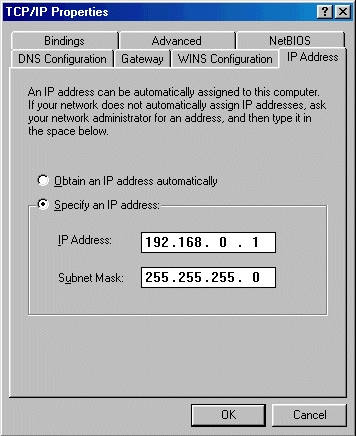
Figure 2: TCP/IP Properties
Step 4: Click the radio button beside Specify an IP address:
Step 5: Enter the numbers as shown in Figure 2, then press OK
Step 6: Click the Identification tab of Network Properties
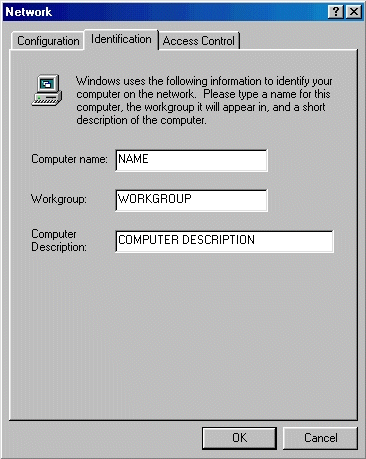
Figure 3: Network Identification
Step 7: Enter a Computer name using letters and numbers without spaces (i.e.
MrChr1s)
Step 8: By default the Workgroup is WORKGROUP. This shouldn’t be changed
unless specifically required
Step 9: Enter a Computer Description if you wish (not necessary)
Step 10: Press OK and reboot when asked to
Step 11: Repeat SECTION 1 on any other computers in the network BUT READ
THE FOLLOWING INSTRUCTIONS:
Each network must have a unique IP address or a
conflict error will appear when Windows starts. The IP address of the
first computer you set up is shown in Figure 2 as 192.168.0.1. When you
are setting up the second computer you can use an IP address of
192.168.0.2. A third computer could have an IP address of 192.168.0.3 and
so on for any additional computers. Each computer must also have a unique
Computer Name. The Computer Name of the first computer is shown in Figure
3 as NAME. When setting up additional computers, give them a unique name
or a conflict error will appear when Windows starts.
Once all the computers have the proper network
addresses and names and have restarted go to the first computer and click
Start --> Run. Type ping 192.168.0.2 and
press OK. This will test the connection between the first computer and second computer. A screen
similar to the following should appear:
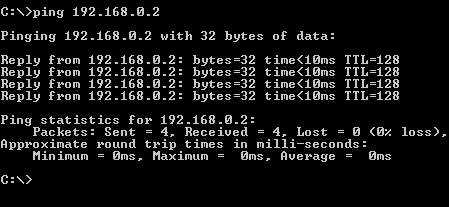
Figure 4: DOS Ping
If you a Request timed out error then there is a problem with either the physical connection or the software
setup. Make sure the connection to the NIC is secure on all computers and
recheck the IP address and other software settings. Most NICs have a green
led on them that is lit when a connection is active. If you have a hub the
corresponding light on the hub should appear as green. If the connections
are secure and the software is set up properly and you can not get a light
to appear there may be a problem with the cables, the hub or the NICs.
Setting Up
Shares
After the computers have rebooted you have to set up shares. Shares are
resources on one computer that you want to share with others on the
network (i.e. hard drive, CD-ROM drive, printer, Zip drive, etc.). To set
up shares do the following:
Step 1: Double click My Computer
Step 2: Right click on any drive that you want to share and pick Sharing
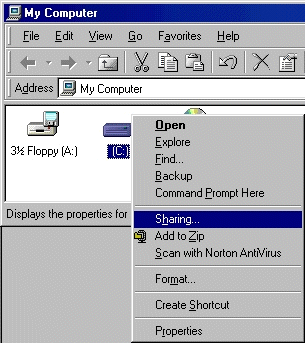
Figure 5: Sharing the C: drive
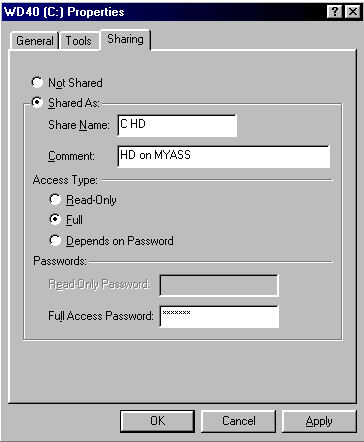
Figure 6: Sharing Properties
Step 3: Click the radio button beside Shared As:
Step 4: Enter a Share Name: (this can be anything but it is limited
to 13 characters)
Step 5: Enter a Comment: (this can be anything and is basically a
descriptor)
Step 6: Set the Access Type:. If you set the access type to
full, other
computers on the network are able to copy files to and from your computer.
If it is set to read only, other computers on the network can copy files
from you but can not copy files to your computer
Step 7: If you put a password in, other computers on the network have to
put it in whenever they try to access the shared resource over the network
Step 8: When you are done press OK and set shares for any additional
resources (Note: CD-ROMs are read-only devices so you can leave the
Access
Type: for CD-ROM, CDRW and any other ROM-type devices as Read-Only)
Step 9: To share printers click on Start --> Settings --> Printers and repeat steps 2 – 5
Step 10: Set the shares on any other network computers
Step 11: Open Windows Explorer (Click Start --> Programs --> Windows
Explorer) and press the + sign beside Network Neighborhood
Step 12: You should see the names of the other computers on the network (if
you don’t, make sure Windows is running on all of them). Press the +
sign beside one of the computer names and you should see all of their
available shares. You can access them just as you would a resource on your
computer
Internet
Sharing
This section assumes that at least one computer is running Windows 98
Second Edition or ME and the network is running properly. Although this is a
peer-to-peer network we will designate the computer that has the internet
connection as the server and any other computers as clients. The server
computer also has to have two NICs installed if you are using ADSL or a
cable modem. One NIC is used for internet access and one for your internal
network.
Server Setup:
Step 1: Click Start --> Settings --> Control Panel --> Internet Options
Step 2: Click the Connections tab and then click Sharing (if you
don’t see a Sharing button you may have to install Internet
Connection Sharing, refer to ICS Installation below)
Step 3: An installation wizard will walk you through the steps
required to set up the server
Step 4: You must make the disk it asks you for but you will not need it
Step 5: Follow the wizard until it completes and reboot if it asks you to
Client Setup:
Step 1: Click Start --> Settings --> Control Panel --> Network
Step 2: Click once on TCP/IP --> Your NIC (shown as Allied Telesyn AT-2500TX in Figure 1) and press Properties
Step 3: Click the Gateway tab and under New gateway: enter the IP
address of the server computer (i.e. 192.168.0.1) and then press Add
Step 4: Press OK when complete and press OK again to close the network
properties
Step 5: Reboot when asked to and repeat on other computers in the network
Step 6: You should now be able to access the internet (if you are using a
modem the server has to have an active connection open)
If you have any problems try clicking Start --> Settings --> Control Panel --> Internet Options. Press the Connections tab and then
press Setup. Follow the wizards instructions and when asked how you
connect to the internet choose through a LAN and follow instructions
until complete.
ICS Installation:
Internet Connection Sharing comes with Win98SE and later versions. If
you need to install it go to Start --> Settings --> Control Panel
--> Add/Remove Programs --> Windows Setup --> Internet Tools. Put
a check beside Internet Connection Sharing and press OK. You may need to
have your installation CD to complete the install.
 Printable version Printable version |
 guides