|
mrchris' |
land of funk |
Monday December 08, 2025 |
|
|
how to: (set up an nes emulator) |
11:29:52 AM Pacific |
|
home bio vehicle tv computers games music movies files links messages  guides
customize |
« |
This guide will explain how to set up an emulator of my choosing on a Windows computer. An emulator is a program that lets your computer act like another computer (in this case a NES). You run images of games called ROMs on the emulator program to bring back memories of your youth or something. There are a number of NES emulators and I use JNES. NESticle is another popular one and I can't remember why I quit using it. Maybe the Win32 version sucked at the time or something. Crap needed: Installing
and configuring JNES
You shouldn't need to change any options in the Audio section but if you have problems with audio in some games, try screwing around in there. If all your games have bad or choppy sound your PC may not be fast enough. If that's the case, go here and buy the computer that I recommend or suffer. If you have a controller that you want to use go to Options-->Input-->Player 1 and the window shown below appears.
In the Additional Devices drop-down box just click the controller
you want to use. Then click the
Playing
games
The game should now take up most, if not all, of the monitor. If it's running in a small window with black borders taking up the rest of the space, press ESC on the keyboard and make sure Stretch is checked as shown in the above picture. While you're playing, the game controls are the same as they were when you played it on the original NES. The emulator program lets you save the game whenever you want, even in games that don't have a save-game feature. These are called save states. You can save your current game by pressing F5. To load a saved game press F7 while the game is running. Games that have built-in save options (i.e. The Legend Of Zelda) will still let you save the game the traditional way along with using a save state. The advantage of save states is that you can use them whenever you want. Be careful not do a save state at a bad time (i.e. in the middle of dying) or you'll have to start the game over or, if available, reload a traditional save. You can pause a game by pressing the game's pre-assigned pause button on your controller or by pressing Pause on the keyboard. You can use Game Genie codes by going into Options-->Cheating... while a game is running. The cheat window will open and you simply enter the code (go to GameFAQs for codes) and, optionally, a description of the code and click Add. Most game will have to be reset (go to CPU-->Reset or just press F1) for the cheat to take effect. During the game you can also take a picture of the current game screen by pressing F3. The files will be saved as .BMPs in the folder where Jnes.exe is located. JNES gives each picture a unique filename so you can save multiple images from a game. When you want to quit playing a game, press ESC on the keyboard to
go back to window mode and go to File-->Close. If you want to exit JNES
completely go to File-->Exit or press the
With a NES emulator you can turn your thousand+ dollar computer into a video game system that debuted in 1985. Your video card probably has more RAM than a NES does. But most of the current PC games aren't as good as the old school NES games so I guess it balances out. Or not.  Printable version Printable version |
|

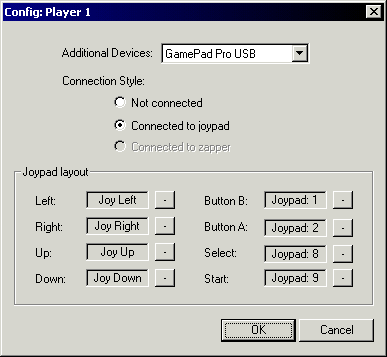
 boxes in the Joypad layout section and press the direction or button
on your controller that you want to use for that function. Click OK
when you're done and repeat the process for Player 2 if you wish or
start playing a game.
boxes in the Joypad layout section and press the direction or button
on your controller that you want to use for that function. Click OK
when you're done and repeat the process for Player 2 if you wish or
start playing a game.
 button in the top right of the JNES window.
|
site help |
email Mr. Chris or post a message or 8283-6958-2055-1402 |
This page was spit out in 0.000443 seconds