how to: (set up an emulator)
Updated: May 21, 2001
This guide will explain how my emulator is set up. You can order a premade emu board if you don't want to open up your receiver and make your own emulator. If you buy a premade board skip to the Setting up your boot disk section. You may have to make some modifications to the emulator building plans described below to get it to work with your receiver (I will note where). If you want to know how other people set up their emulators or any other emulator info check Google Groups or Google. There are quite a few steps and it may seem overwhelming if you've never picked up a soldering iron before but a friend and I (neither of us with much, if any, electronics skills) completed this in a couple of hours.Equipment
needed
H card (it can be Black Sunday (Jan. 21, 2001) ECM'd)
Programmer (if the H card is not BS ECM'd)
Unlooper (if the H card is BS ECM'd) See here for how to do the
Phoenix mode mod to an unlooper that needs it
.0047uf capacitor (only if you have to Phoenix mod your unlooper). I got mine from
Active Electronics on
Boundary and First
PCB board to mount 14-pin socket on. I got this from Active
14-pin socket to mount chip on (or just solder to the chip if you want and melt it). I got this from
Active
MC1489N Quad Line Receiver 14 Pin DIP chip. I got this from Active (Radio Shack PN: 276-2521)
DB9 Female Connector. I got this from Active
Wire (24 gauge telephone wire is what I used). I got this from a friggin drawer in my house
Soldering iron (30-45W) and solder
Multimeter to find correct card slot pins (optional)
Someone who can solder tight spots (I didn't do the soldering on mine)
PC with the following minimum specs:
486DX2 (or equivalent) CPU (omit the /s switch for SLE on 486's)
Motherboard (obviously this depends on your choice of CPU)
4MB RAM
Video card (you can be as cheap as you want here)
(2) serial ports with 16550 UARTS (may get errors with anything less)
3 1/2" Floppy disk drive and one disk (steal this from work, relative, store)
Case with power supply (to put the above computer crap in)
Building the emu
board
I used Zap's Zapulator02 method shown
below:
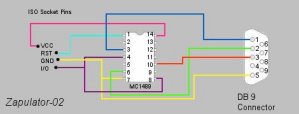
Zapulator-02 diagram
To find the 4 contact points (VCC, GND, IO, RST) on your card slot use a multimeter. If you know someone who has already done this on the same model receiver just copy them and skip to step 7 after finishing this paragraph. Either way take the casing off the receiver and then plug the receiver in and power it up with any kind of card (credit card, Coke card, whatever the hell kind of damn card you have) inserted all the way into the card socket. Note: The receiver is receiving current so be careful of what you touch and make sure any static built up on you is discharged.
To find the card socket's contact points:
Note: all directions assume you are facing the front of the receiver with it top-side up
01. set the multimeter to measure resistance (ohms)
02. put the black lead to a ground point on the receiver (there was a green wire leading to a grounded screw on the left side of mine)
03. put the red lead to the card socket pin that you think is GND (on mine it was the far right pin in the first row of 4-pins). The multimeter will read close to or exactly zero when you find the right pin
04. set the multimeter to measure DC volts
05. with the black lead still on the ground from step 2, put the red lead to the card socket pin that you think is
VCC (on mine it was directly behind the GND pin on the far right of the second row of 4-pins). The multimeter will read close to or exactly
5V when you find the right pin (Note: this is a pulse
signal so it will fluctuate)
06. now that you know pin 1 (VCC) and pin 8 (GND) finding pins 2 and 6 is easy (if you have trouble with this I'm surprised you are still breathing)
07. turn off the receiver and important: disconnect the power
08. on the card socket - pin 1 (VCC) goes to pin 14 of the MC1489
09. on the card socket - pin 2 (RST) goes to pin 1 of the MC1489
10. on the card socket - pin 6 (IO) goes to pin 4 of the MC1489
11. on the card socket - pin 8 (GND) goes to pin 7 of the MC1489
Note: for the following 4 steps run the appropriate length of 24 gauge wire between the
DB9 connector and the MC1489 (I used 12 feet. Runs over 10 feet are not recommended but may work)
12. on the DB9 female connector - pin 1 goes to pin 3 of the MC1489
13. on the DB9 female connector - pin 2 goes to pin 6 of the MC1489
14. on the DB9 female connector - pin 3 goes to pin 10 of the MC1489
15. on the DB9 female connector - pin 5 goes to pin 7 of the MC1489
16. pin 4 of the MC1489 goes to pin 8 of the MC1489
Your emulator board is now complete. As long as you soldered everything correctly it should work. Hold off on securing the receiver cover with screws until you know it's working. On to the software setup.
Setting up your boot disk
Gunny has a good FAQ on his site that explains how to set up a bootdisk so I ain't writing it all again. Note: If you know me, call me and I will send you an image of my boot disk. Phone only, no email and no requests from people I don't know or like.
Hooking up and running
things
This section only covers how I configured my setup with my
boot disk (see Note
above regarding requests for said disk) and a Phoenix mode unlooper. If yours is different, this may not work.
To AUX your card (assuming it was hit by the BS ECM. If it wasn't
hit, just clean it to 26 updates in BasicH, boot off the boot disk and skip to step 12 and
substitute the word programmer for unlooper):
01. connect the unlooper to COM1 of a computer WITHOUT the H card inserted and
apply power (only one LED should be lit)
02. boot off the boot disk (make sure the computer is set to boot off
the floppy drive first) but press F5 to
bypass the startup files right after the BIOS screen disappears
03. when you're at the A:\> prompt type cd su2v2 and press
ENTER
04. when you're in A:\su2v2> type su2v2 and
press ENTER
05. in the SU2 program screen press r once to switch from
Read
to Write mode. If you see an error regarding the programmer's connection,
make sure the thing is on COM1
06. press e once and the program should ask for an image file
07. type good (remember this will only work with my
boot disk) and press ENTER
08. the SU2 program should ask you to insert the card (do it)
09. the program should start doing some crap and then show a progress bar going up to
100% (if you get an error your card may be dead)
10. after the image has been successfully applied press CTRL-C to
exit su2v2
11. disconnect power to the unlooper but leave the H card inserted
12. remove the unlooper from COM1 and put it on COM2
13. re-connect power to the unlooper (now both LED's should be lit up)
14. type cd \ (note the damn backslash) and press ENTER
15. you should be at the A:\> prompt. Type makeaux and press
ENTER
16. read the warning message and make sure everything is proper before continuing
17. the AUX'ing will take a couple minutes and then it'll say something like
Card Ready. If you get an error make sure the unlooper is on COM2
18. if you need to move to the emulator computer, un-power the unlooper but leave the H card inserted
19. on the emulator computer: Connect the emu interface to
COM1 and the unlooper to COM2
20. re-connect power to the unlooper (both LED's should be lit up)
21. power up the computer with the boot disk inserted (make sure the
computer is set to boot off the floppy drive first)
22. after about 20 -30 seconds the disk should quit reading (floppy
drive LED is unlit)
23. if the emu board is already inserted in the receiver, remove it and re-insert it or if it isn't in the receiver just insert it
24. TV should be on
25. to stop the emulator press capital Q (either hold down
SHIFT while pressing q or turn CAPS LOCK on and press q)
26. if you want to restart the emu, you can type tv and press
ENTER and repeat step 23 or reboot the computer and repeat steps
21 - 23
Well that's how I built my emulator. Actually Jeff did most of the building and the information was found in Usenet and on websites. So I didn't do much besides look for information which was readily available to anyone. If you have any questions try looking for answers yourself. Much thanks to PGM
Errors,
updates and other fun
Once in a while you may get a Call Ext. 7?? error or Insert Valid
Access Card. There are a number of factors that cause the errors. The first
step you should try is to press capital Q and see if the floppy disk
drive lights up for a couple of seconds. After it's done (or if it doesn't light
up at all), you should try rebooting the PC. Sometimes a reboot does not solve
the problem. The next step would be to reboot again and disconnect (and then
immediately re-connect) the power to your
programmer/unlooper (if it has such a connector) while the PC is booting (but
before the emulation software starts). In my experience this has
solved all the problems that a regular reboot does not. Having a monitor
connected makes the process a lot easier as you can see if the emulator software
is displaying any errors. I have read about people needing to re-aux their cards
so that may be another possibility (see Hooking up and running
things step 2 and then skip to 14-17 for aux-ing info with
my boot disk). Only re-aux a card if you are sure it is
necessary.
Once in a while an update to the USW may be sent down. After some time (could be hours or days) you may only be able to watch TV if your core file is set to a certain USW (i.e. 63). Once it has been determined that the updates are safe (or necessary) you should update the core file on your boot disk. Your disk's core file gets loaded into memory (RAM) when the emulation software starts. The file in RAM accepts the updates but the core file on your boot disk remains untouched unless you manually save it. The file in RAM is unloaded (i.e. erased) when you quit the emulation software or reboot the PC. If you want to save the updates to your disk press capital S. If you're using a non-standard core name (i.e. core.bin) you'll want to backup your file and then COPY the newly updated SLE44E_P.COR to YOURFILE.EXT. If you have my boot disk just save the core as above, then quit the emulator software with capital Q and type UPDATE and press ENTER. When the floppy quits accessing, restart the emulator by typing TV and press ENTER or just reboot the PC. If you choose not to update your disk's core file everything should continue to work properly since the core file in RAM will have been updated. The only drawback may be a delay due to the core file on your boot disk not being up to the current USW if you stop the emulator software or reboot the PC. If the updates are required and you haven't updated your disk's core file you will have to wait until they are added to the core file in RAM (shouldn't take more than a few minutes provided they are still being sent down the stream) before you can watch TV